Console Ninja v2
We are excited to announce Console Ninja v2, a major evolution of our logging and runtime inspection experience. It introduces a completely redesigned Log Viewer.
This release rethinks how you explore logs while coding, especially in fast-moving environments with hot reloads, frequent app restarts, and large volumes of output. The result is a smoother, more focused debugging workflow that helps you understand what your application is doing right now.
The viewer has been rebuilt from the ground up with a cleaner layout, improved ergonomics, and clearer visual structure. Logs are presented in chronological order with a list and details layout that makes it easy to scan sequences, dive into specific entries, and understand behavior at a glance.
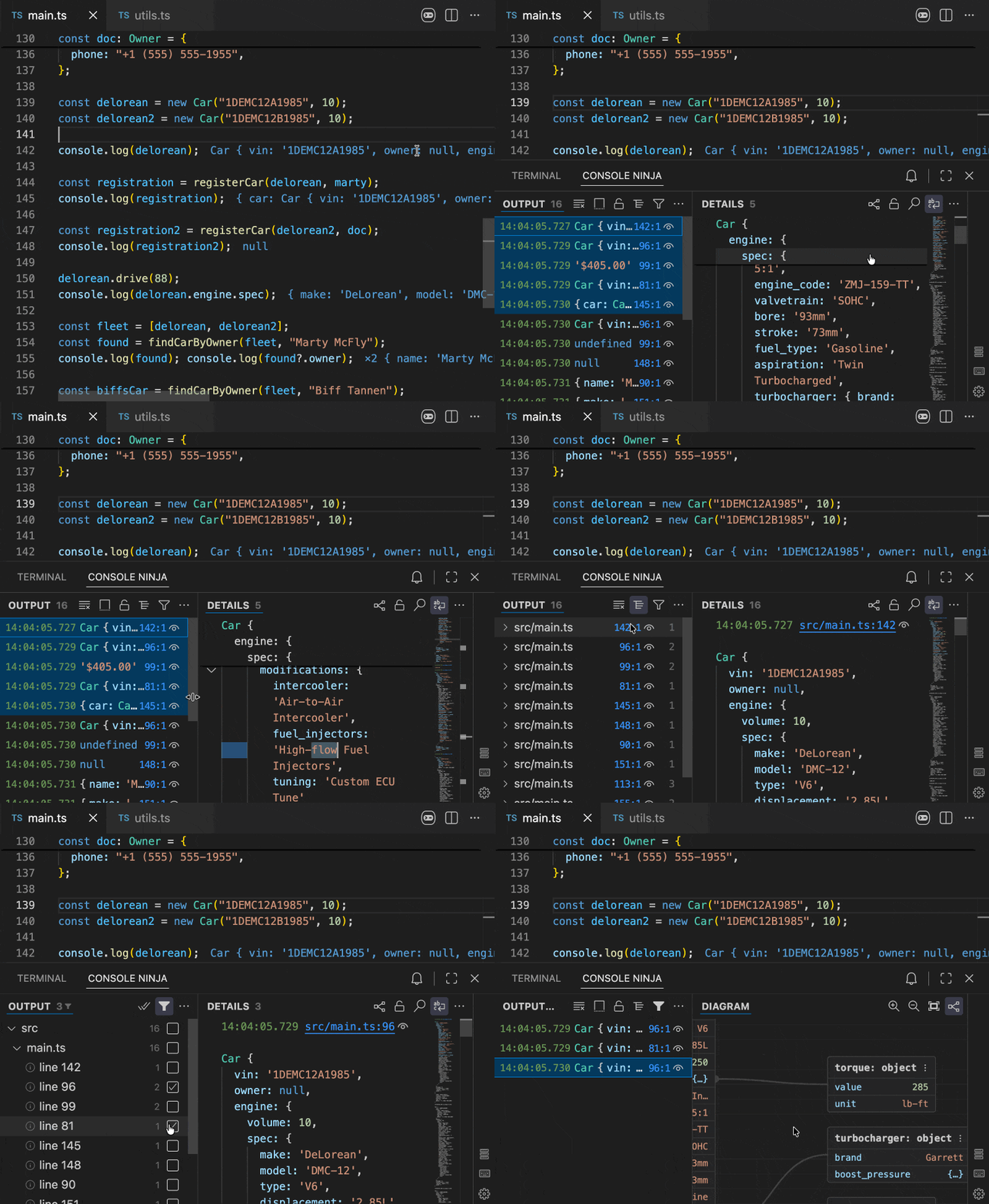
Key improvements include:
-
New list-details layout with a horizontal view enabled by default for better use of editor space. Multiple items can be selected to view details and compare logs side by side. When no item is selected or selection is cleared, the details panel shows all captured logs.
-
Rich details panel powered by a high-performance customized Monaco engine, including semantic highlighting and navigable stack traces with inline code previews. Interactive controls allow you to expand and collapse nested data, navigate large objects with breadcrumb navigation, and view interactive runtime value graphs as diagrams.
-
Log map is a tree view of active logpoints and their associated output. Enables quick navigation and structured exploration of output grouped by source location, as well as real-time observation of how values change at specific code points.
-
Advanced filtering view to quickly narrow down large log streams by including or excluding specific sets of source locations.
New list-details layout with rich details panel
Available to Community and PRO users.
The redesigned Log Viewer v2 introduces a list-details layout that makes it easy to scan and explore logs.
The left side displays a chronological list of log entries, while the right side shows detailed information for the selected log(s). This layout maximizes the use of horizontal space in the editor. If you prefer a vertical layout, you can drag the details panel to the side of the editor.
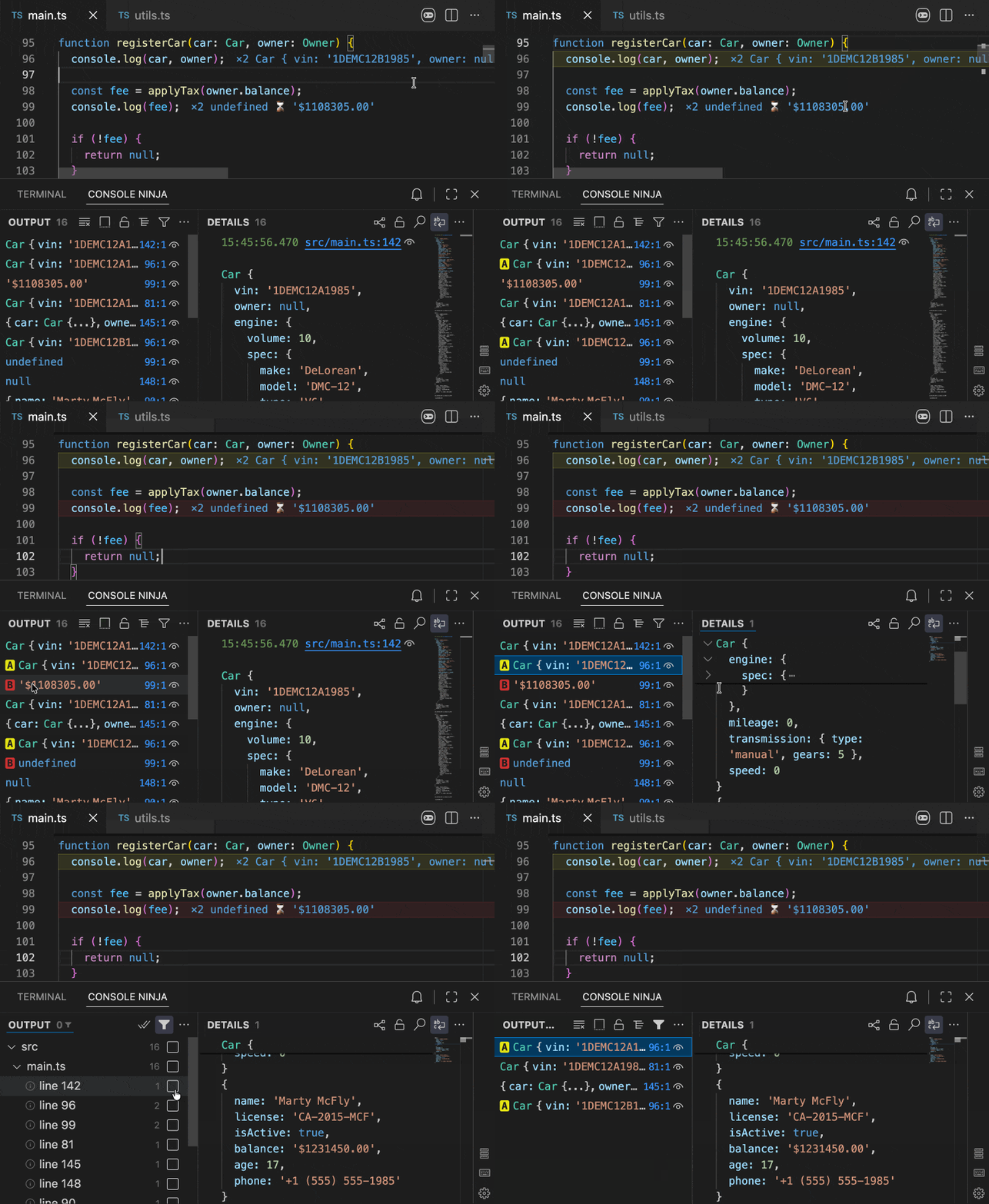
- When a single log entry is selected, the details panel shows full information about that entry on the right.
- When multiple entries are selected (using your mouse or keyboard with
ShiftorCtrlkeys), their details are shown in the details panel. For 2 selected entries, a side-by-side diff view is available to compare their values. - If no entries are selected, the details panel displays all captured logs. To clear selection and return to this view,
press
Esc.
Log Map
Available to PRO users only.
Console Ninja v2 introduces Log Map, a reimagined feature previously known as Watchpoints.
Log Map shifts the focus from individual expressions to source locations. Instead of chasing logs through time, you get a structured view of output grouped by where it originates in your code. This makes it easy to understand what is happening at each point in your application.
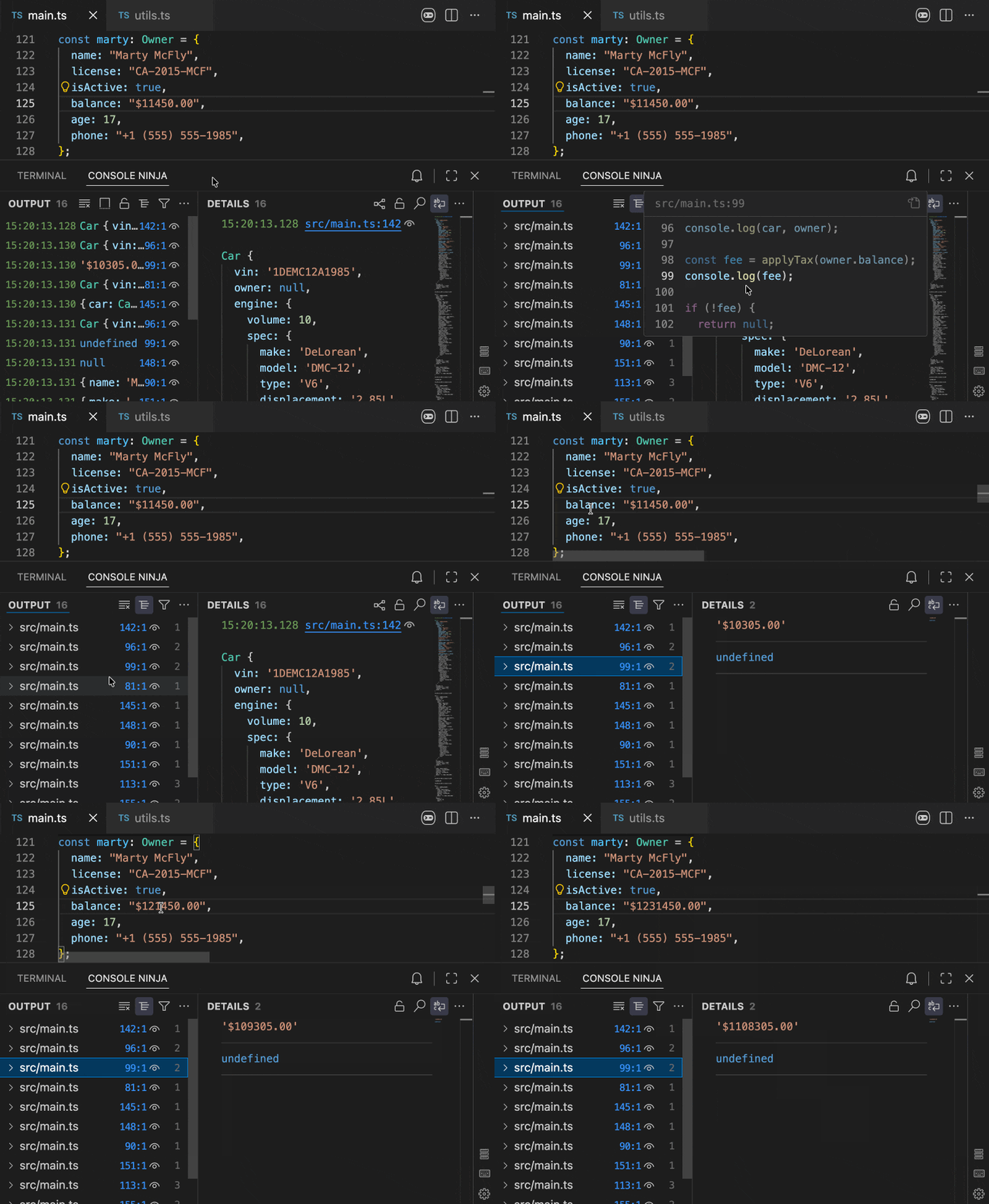
As you edit code or interact with your app, Log Map updates in real-time, letting you observe how values evolve at specific locations.
Filtering view
Available to PRO users only.
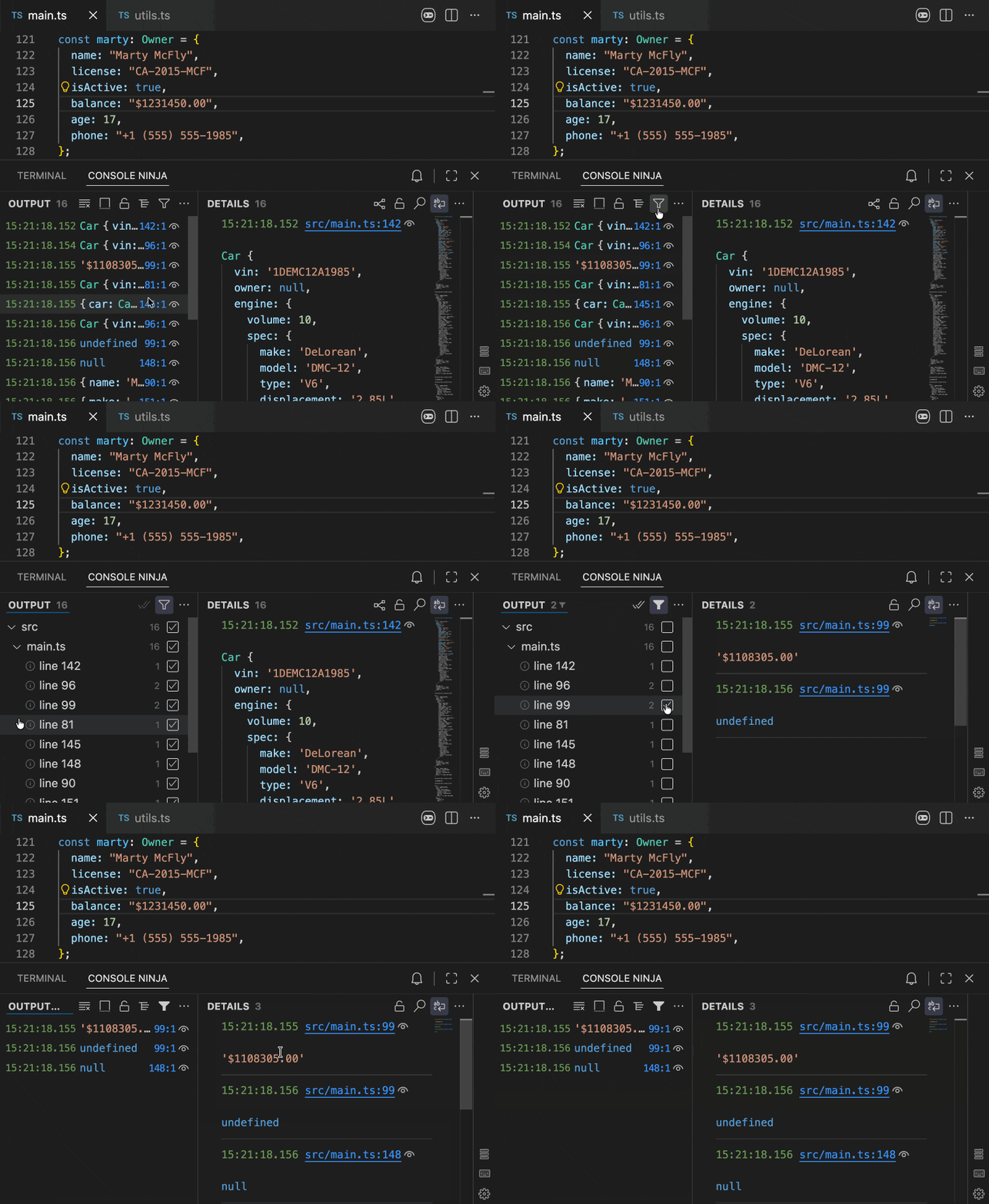
Log Viewer entry filtering allows you to filter entries by their file and/or line. For example, you can display log entries only for a specific line of code or hide entries from a specific file. This filtering makes it easier to quickly find and track specific log entries when working with large volumes of logs.
Enhanced keyboard navigation
Full keyboard navigation support is available for all viewer features, including selection, filtering, and navigation within log details. Some most useful keyboard shortcuts include:
Escto clear selection and show all logs in the details panel..to open inline code preview for selected log’s source location. Works both in list and details panel.Enterto focus the details panel from the list, andEscto return focus to the list.Tto show or hide the log map (logpoints tree view).Fto show or hide the filter view.?to open the keyboard shortcuts help menu.
Conclusion
Console Ninja v2 is a significant step forward in how runtime behavior is explored inside the editor.
With the redesigned Log Viewer v2, Console Ninja now tells a clearer, more structured runtime story. Whether you are debugging a tricky flow or exploring unfamiliar code paths, v2 keeps everything organized, navigable, and easy to understand.
We’d love your feedback as we continue to refine and enhance the experience.
Tweet us at @wallabyjs or drop a line at hello@wallabyjs.com.
Thanks for reading.